

Setting Up the Canvas
The canvas is the white (or colored) rectangle that represents the final output. Setting it up correctly at the start saves work later.
Creating a new canvas
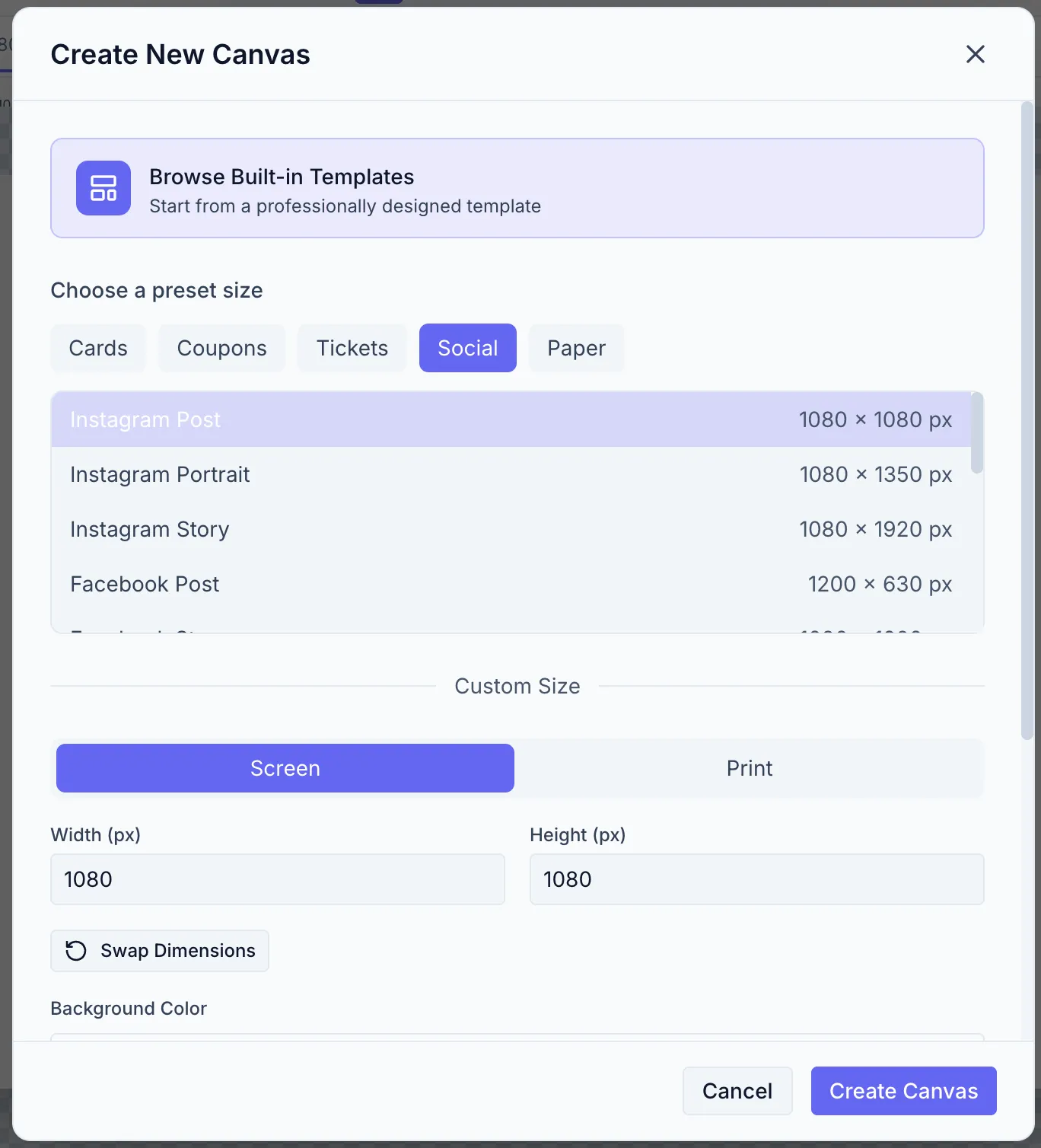
Section titled “Creating a new canvas”Click the New Canvas icon in the sidebar rail (file+ icon) or click the + button in the template tab bar. The Create New Canvas dialog opens.
Choosing a preset
Section titled “Choosing a preset”The preset dropdown includes common sizes grouped by category (social media, paper/print, etc.). Selecting a preset fills the width and height automatically.
Custom dimensions
Section titled “Custom dimensions”Enter any width and height in the unit you prefer. Supported units: px, mm, cm, in. Zandovi converts to pixels internally based on the DPI.
Output intent
Section titled “Output intent”- Screen — pixel-based output; DPI is 96 (default).
- Print — physical-dimension input; DPI options typically 150, 300 dpi.
For print-ready files choose Print and set the Export DPI (300 is standard for high-quality print).
Background color
Section titled “Background color”Pick an initial background color. You can change this later from the Canvas settings panel.
Click Create to open the new canvas.
Adjusting canvas settings later
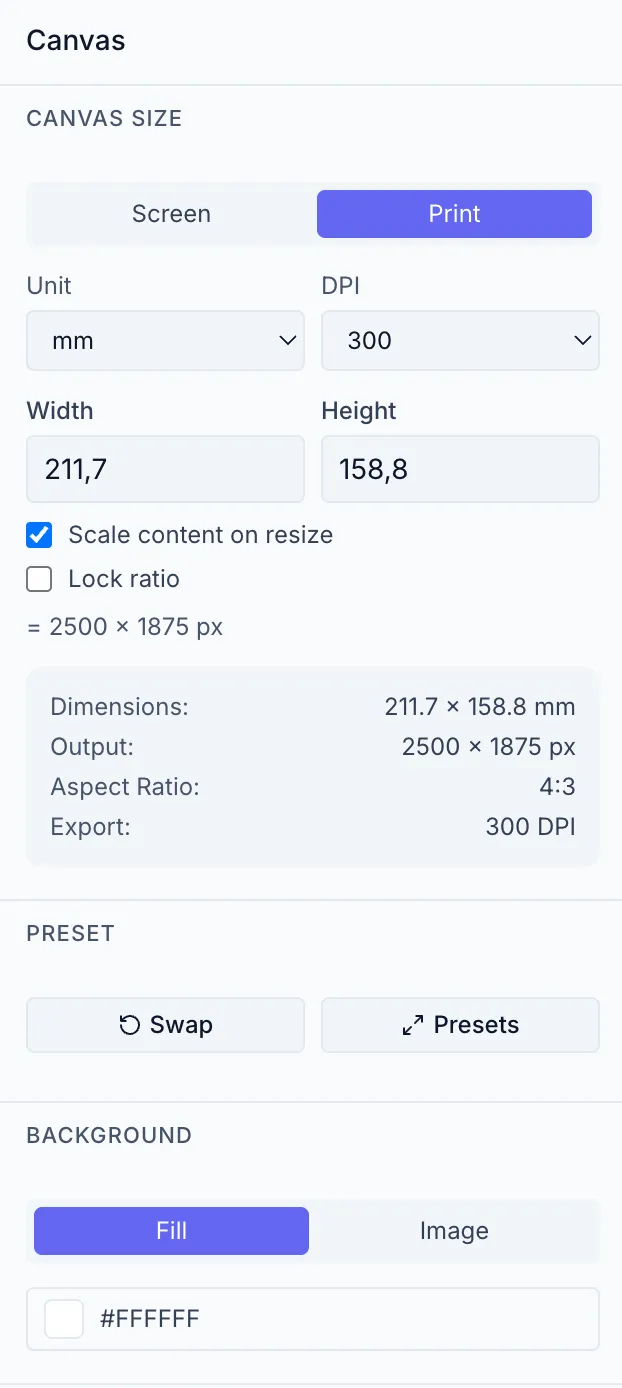
Section titled “Adjusting canvas settings later”When nothing is selected on the canvas, the Properties panel on the right shows Canvas settings:
| Control | What it does |
|---|---|
| Preset buttons | Quick-set common sizes |
| Width / Height | Exact dimensions |
| Unit selector | px / in / cm / mm |
| ↔ Swap dimensions | Switch width and height (portrait ↔ landscape) |
| Output Intent | Screen or Print |
| Export DPI | Pixels per inch for exported images |
| Canvas Fill | Background fill: solid color, linear/radial gradient, or an image (with a fit mode — Cover / Contain / Stretch) |
Reaching the Canvas settings
Section titled “Reaching the Canvas settings”The Canvas settings live in the Properties panel whenever nothing is selected. Right-clicking the canvas background and choosing Canvas Settings… simply clears the current selection, which brings the same Canvas panel back into view on the right.