

Built-in Template Gallery
Zandovi includes a library of professionally designed templates across many categories. Use them as-is or as a starting point you customize.
Opening the gallery
Section titled “Opening the gallery”Open the project overview, then click From library. The overview is the ▦ Overview tab at the left end of the template tab bar; you can also reach it with Open project overview at the bottom of the Templates panel, or by clicking the project name in the header breadcrumb and choosing Project overview. In an empty project the same From library button is also in the middle of the page. The New template dialog opens the gallery too: choose Built-in template at the top.
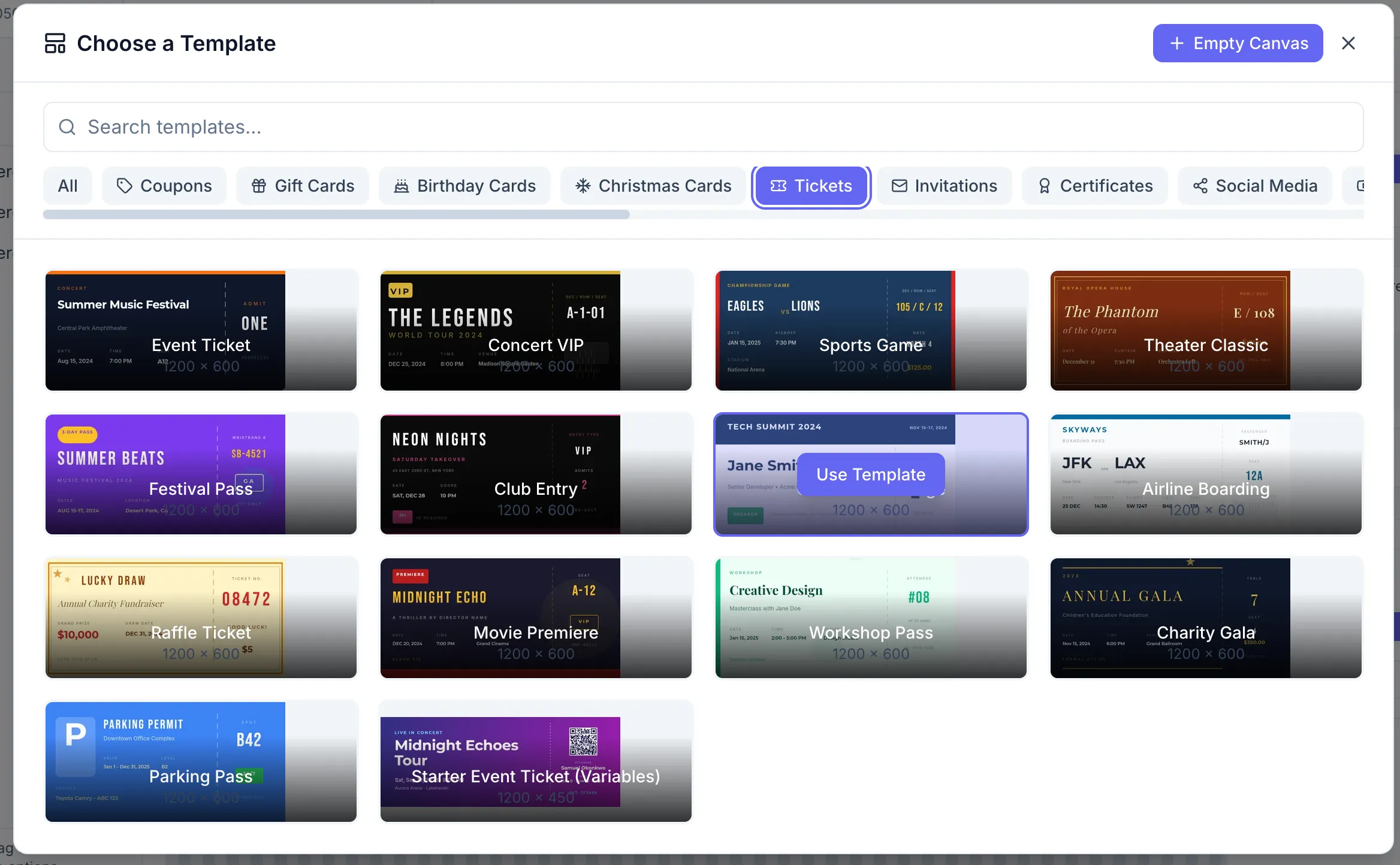
Template categories
Section titled “Template categories”Built-in templates are organized by use case. Click a category chip to filter, or All to see everything:
- Coupons
- Gift Cards
- Birthday Cards
- Christmas Cards
- Tickets
- Invitations
- Certificates
- Social Media
- YouTube Thumbnails
- Open Graph / Blog
- Real Estate
- E-Commerce
- Event Badges
- Shipping Labels
- Podcast
- Reviews
- Food & Recipe
- Invoices
Using a template
Section titled “Using a template”- Search or browse to find a template you like.
- Click its card.
- The template opens in a new tab in the current project, ready to edit. It’s a new, unsaved template until you save it — see Saving & Updating Templates.
Prefer a blank canvas after all? Empty Canvas in the top-right corner of the gallery opens the New template dialog.
Your own saved templates aren’t part of the gallery: they appear in the Designer’s Templates panel and on the project overview. To start from a template a teammate shared, see Reusing & Copying Templates.