

Reusing & Copying Templates
Using a shared template
Section titled “Using a shared template”When you open a template you don’t own (for example one shared by a colleague), the header shows the Read only badge and a Use this template button.
Clicking Use this template creates your own editable copy:
- A dialog asks which project to copy it into.
- Select a project (or create a new one).
- Click Use. A copy of the template is added to your chosen project.
You can now edit and save it freely without affecting the original.
Copying a template between projects
Section titled “Copying a template between projects”You can copy any of your own templates into a different project:
- Open the template tab bar and click the ⋯ menu on the template tab.
- Choose Copy to Project.
- In the Copy Template to Project dialog, search for or select the destination project.
- Click Copy.
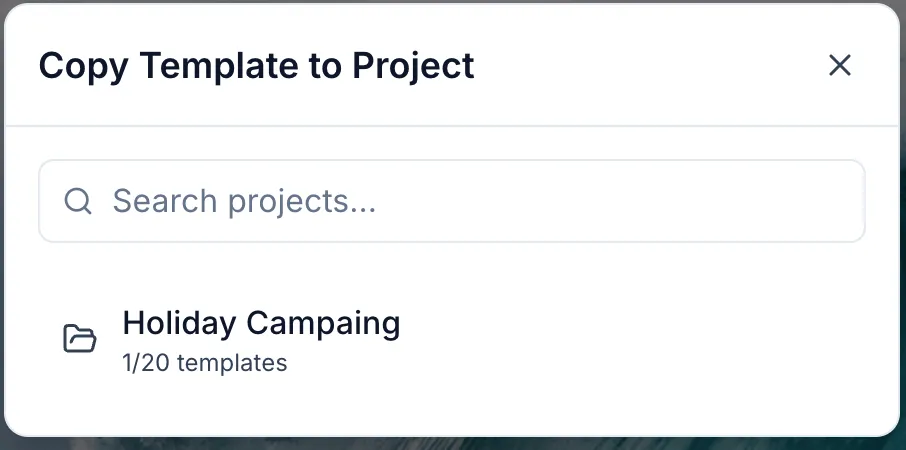
The original template stays in its project; a copy appears in the destination.