

Working with Multiple Templates
A single project can hold multiple templates. This is useful when a design has more than one side (e.g. front and back of a gift card) or when you want a family of related assets in one place (e.g. square and landscape versions of a social post).
The template tab bar
Section titled “The template tab bar”When a project is open, a horizontal tab bar appears below the header. Each tab represents one open template. The pinned ▦ Overview tab at the left end can’t be closed or moved; it shows the project overview, a grid of every template in the project with New template and From library buttons. Clicking a card there opens that template in a tab.
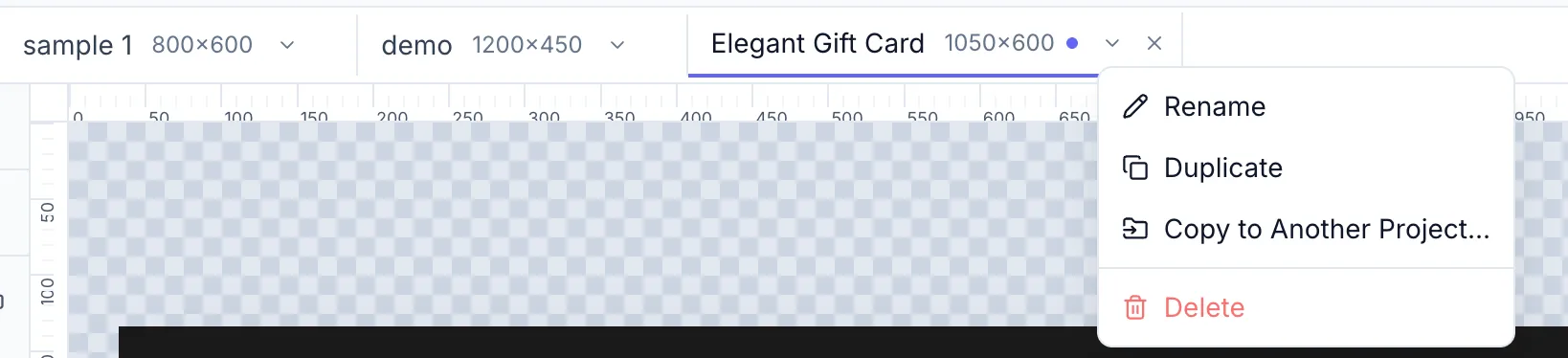
Tab indicators
Section titled “Tab indicators”| Indicator | Meaning |
|---|---|
| Dot (accent colour) | Unsaved changes in this template |
| No dot | Template is saved |
Project menu (⋯)
Section titled “Project menu (⋯)”The ⋯ button at the right end of the tab bar (tooltip: “Project options”) opens the project menu:
| Action | What it does |
|---|---|
Switch project… (⌘O / Ctrl+O) | Opens the project switcher from the header breadcrumb |
| New project… | Opens the New Project dialog |
| Save as template… | Opens the Save as Template dialog for the template on the canvas |
| All projects | Leaves the project and shows the full project list; the Z logo does the same |
Tab menu
Section titled “Tab menu”Click the ▾ arrow on a tab (tooltip: “Template options”), or right-click the tab, for these actions:
| Action | What it does |
|---|---|
| Rename | Edit the template name inline |
| Duplicate | Create a copy of this template in the same project |
| Copy to Another Project… | Copy this template into a different project |
| Version history… | Open the template’s saved versions and restore one — see Version history. Shown only on saved templates you created |
| Delete | Permanently delete this template (confirmation required) |
Only a template’s creator can rename or delete it. Duplicate and Copy to Another Project… need a saved template; on a template that was never saved the menu offers Save Template instead.
Templates panel
Section titled “Templates panel”Click Templates at the top of the left rail to see every template in the project as a thumbnail, without leaving the canvas. Click the button again to close the panel. The panel header shows how many templates the project has.
- Click a card to switch to that template. The panel stays open, and the template you were on keeps its unsaved changes.
- The card of the template on the canvas has an accent outline. A card with an accent-coloured dot has unsaved changes, and a template that was never saved carries an Unsaved badge.
- A card’s ⋯ button (or a right-click on the card) opens the same actions as the tab menu: Rename, Duplicate, Copy to Another Project…, Version history… and Delete. They work on the template you picked, whether or not it is open in a tab.
- The last card, New, opens the New template dialog. Open project overview below the grid shows the project overview.
Adding a template
Section titled “Adding a template”Click + New at the right end of the tab bar (it reads New template when no tabs are open), the New card in the Templates panel, or New template on the project overview. The New template dialog opens — start Blank with a size preset or custom dimensions, or choose Built-in template to pick from the library. A new template stays unsaved until you save it the first time. See Setting Up the Canvas.
Template quota
Section titled “Template quota”On the Free plan a project can hold up to 5 templates (unsaved new templates count too); paid plans have no per-project limit. At the limit every New button is disabled with the tooltip “Template limit reached for your current plan”, and projects that are full can’t be picked as a Copy to Another Project… destination.
Unsaved changes
Section titled “Unsaved changes”If you restore a version of a template that has unsaved changes, an Unsaved Changes dialog opens first: “You have unsaved changes to “Template name”. Before restoring a version, would you like to save your work?” with Cancel, Discard and Save buttons. Save saves your changes and goes on to the restore, Discard drops them and goes on, and Cancel stops the restore.
Closing a single tab with unsaved changes still asks on its own: ““Template name” has unsaved changes. Are you sure you want to close it?” with Cancel and Close Without Saving. Switching between tabs never asks; each tab keeps its unsaved changes and its own undo history while the project stays open.
Leaving a project
Section titled “Leaving a project”When you leave a project (All projects, from the logo or the tab bar’s ⋯ menu, picking another project, creating a new project, or Sign out) while any of its templates has unsaved changes, an Unsaved changes in project name dialog lists those templates, marking the one on the canvas (open). Choose one of:
| Button | What happens |
|---|---|
| Save all & continue | Saves every listed template, then leaves the project |
| Discard & continue | Drops all the unsaved changes, then leaves the project |
| Cancel | Stays in the project with nothing changed (Esc or a click outside the dialog does the same) |
Creating a new project asks before the project is created: Cancel keeps the New Project dialog open with what you typed. Signing out asks first too, and signs out only after Save all or Discard.
- A template that was never saved has no name yet, so Save all is unavailable (“Name and save “template name” first”). Click Go to it on its row to open it and save it, or discard.
- A template you can only view (shared by another member) reads “View only, changes can’t be saved”. Save all saves the others and discards its changes.
- If a save fails, the dialog stays open and shows “Couldn’t save” with the reason on that row; templates that did save show “Saved”. Try Save all again, or Discard the rest.