

API Keys
API keys let you call the Zandovi API from your own code — email systems, e-commerce platforms, print-on-demand workflows, etc.
Opening API Keys
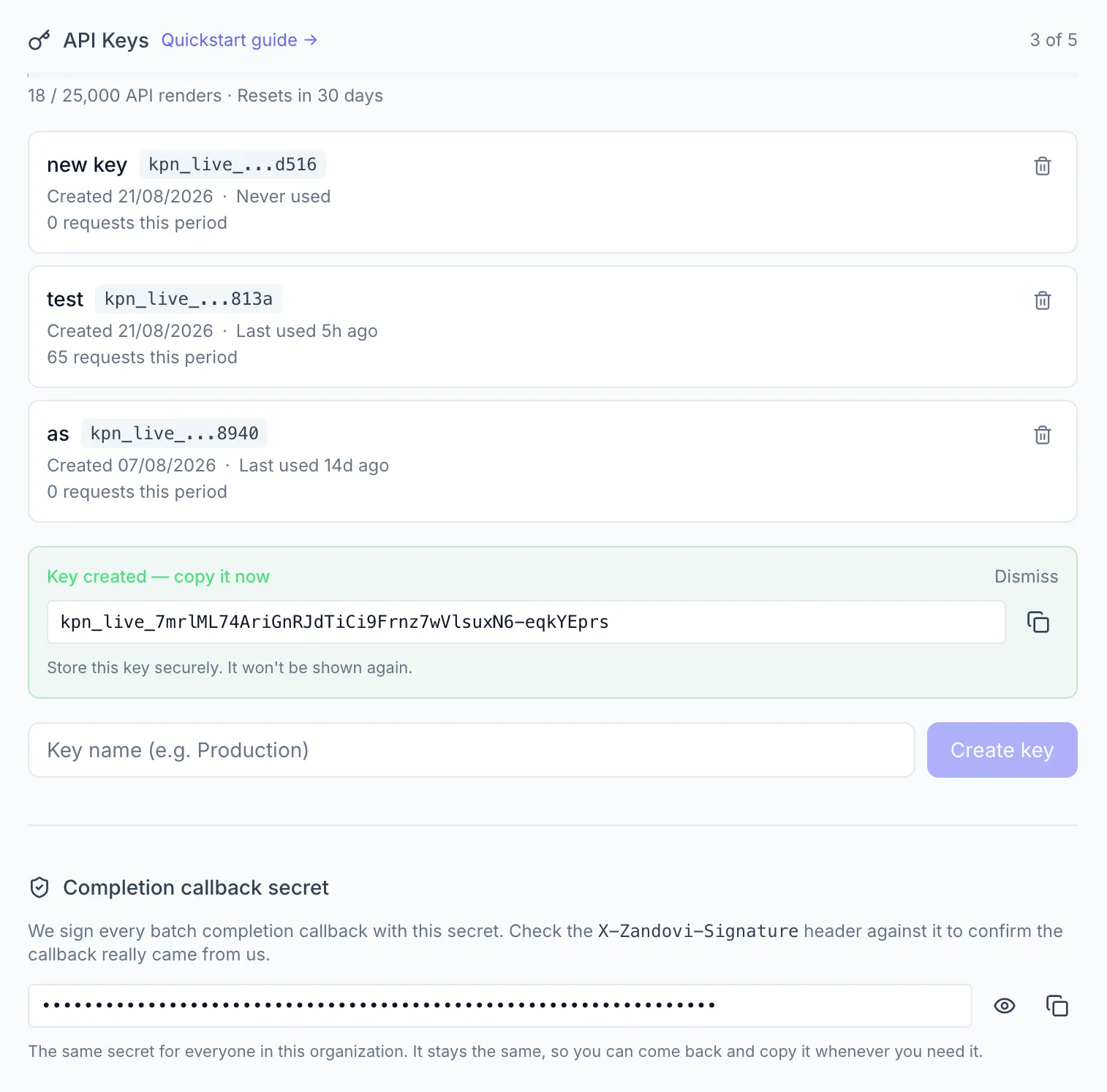
Section titled “Opening API Keys”Go to Settings → API Keys (key icon).
Creating a key
Section titled “Creating a key”- Enter a Key name (e.g. Production, Newsletter Service).
- Click Create key.
- A green banner appears: “Key created — copy it now.” Copy the full key immediately — it is never shown again.
Key list
Section titled “Key list”Each key shows:
- Name and a partially-redacted display (prefix…hint)
- Created date
- Last used (or “Never used”)
- Request count for the current billing period
- A delete icon
Deleting a key
Section titled “Deleting a key”Click the trash icon next to a key. A confirmation prompt appears — click Delete to confirm. Deleted keys stop working immediately.
Completion callback secret
Section titled “Completion callback secret”Below the key list sits Completion callback secret — the secret every
batch completion callback for this workspace is signed with. Use it to
verify the X-Zandovi-Signature header on the receiving end.
- Click the eye icon to reveal it, the copy icon to copy it.
- Unlike an API key it is re-displayable — come back and read it whenever you need it, there’s no reveal-once ceremony.
- It never expires and nothing rotates it on a schedule.
- It is deliberately not an API key: a leaked API key can’t forge callbacks, and a leaked signing secret can’t render. Store it with the same care all the same.
- It belongs to the workspace, so every callback from every key in it is signed with this one secret.
Limits
Section titled “Limits”- Maximum 5 keys per member — each member has their own limit within a workspace. If you reach it you’ll see “Maximum of 5 keys reached. Delete an existing key to create a new one.”
- Each key shares the workspace’s API quota. The quota bar at the top of the section shows X / Y API renders · Resets in Z days.
For quota details see Usage & Quotas. For how to use a key in API requests see API Reference → Authentication.