

Variable Settings
The Variable tab in the Properties panel is where you configure a bound element’s variable. The fields vary slightly by element type.
Text variable settings
Section titled “Text variable settings”Select a variable-bound text element and click the Variable tab.
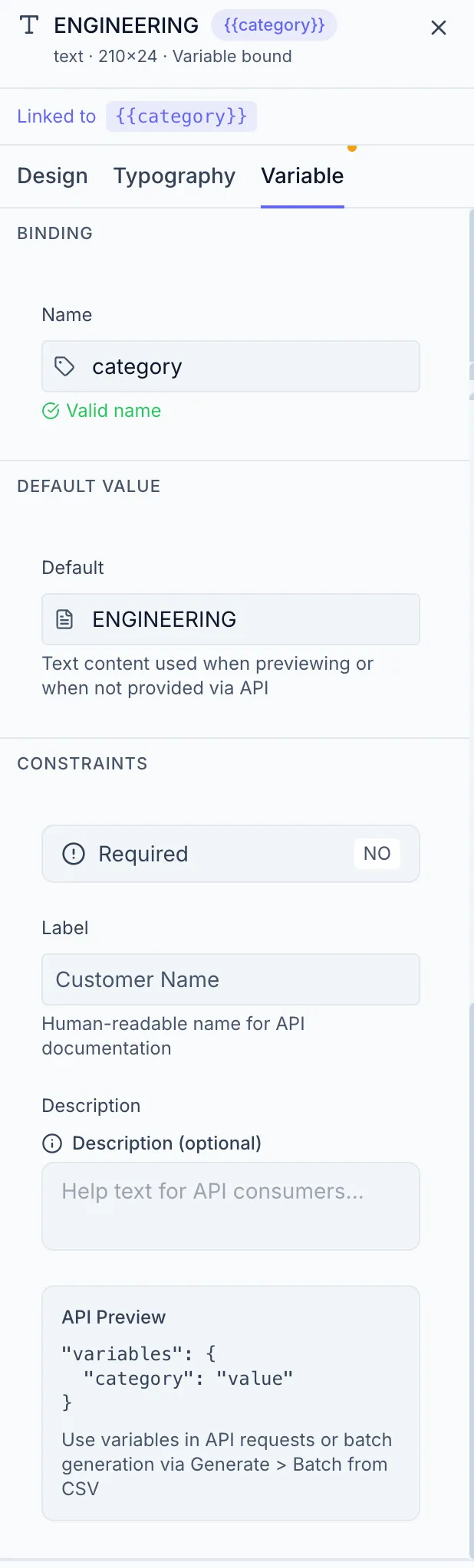
| Field | Description |
|---|---|
| Name | The variable identifier — shown on the element’s {{...}} badge and used as the field name in CSV columns and the API (e.g. discount_code). Must be unique within the template. Validated in real time. |
| Default | The value shown in the Designer preview and used when the variable is not provided at render time. |
| Required | Toggle YES / NO. Required variables must be provided in every render request; optional variables fall back to the default. |
| Label | A human-readable display name shown in the Generate dialog and API docs (e.g. “Discount Code”). |
| Description | Optional help text for API consumers or teammates. |
| API Preview | A read-only code block showing how this variable appears in the template’s JSON schema. |
Image variable settings
Section titled “Image variable settings”| Field | Description |
|---|---|
| Name | Variable identifier (e.g. employee_photo) |
| Default URL | URL of a fallback image used if no image URL is provided |
| Fit Mode | How the image fills the placeholder: Cover, Contain, Fill, None |
| Required | YES / NO |
| Label | Human-readable label |
| API Preview | JSON schema fragment |
QR code variable settings
Section titled “QR code variable settings”| Field | Description |
|---|---|
| Name | Variable identifier (e.g. redemption_url) |
| Default | Default QR data/URL used in previews |
| Label | Human-readable label (e.g. “Redemption URL”) |
| API Preview | JSON schema fragment |
Barcode variable settings
Section titled “Barcode variable settings”| Field | Description |
|---|---|
| Name | Variable identifier (e.g. product_sku) |
| Default | Default barcode data |
| Label | Human-readable label (e.g. “Product SKU”) |
| API Preview | JSON schema fragment |
Variable naming rules
Section titled “Variable naming rules”- Use lowercase letters, numbers, and underscores only.
- Must be unique within a template.
- Examples:
first_name,qr_code_data,promo_image. - Avoid spaces or special characters.
The Variables panel
Section titled “The Variables panel”All variables in a template are listed in the Variables panel (left sidebar rail, variable icon). Each entry shows the variable name, type icon, and Required/Optional badge. Click a row to select that element on the canvas.