

Layers Panel
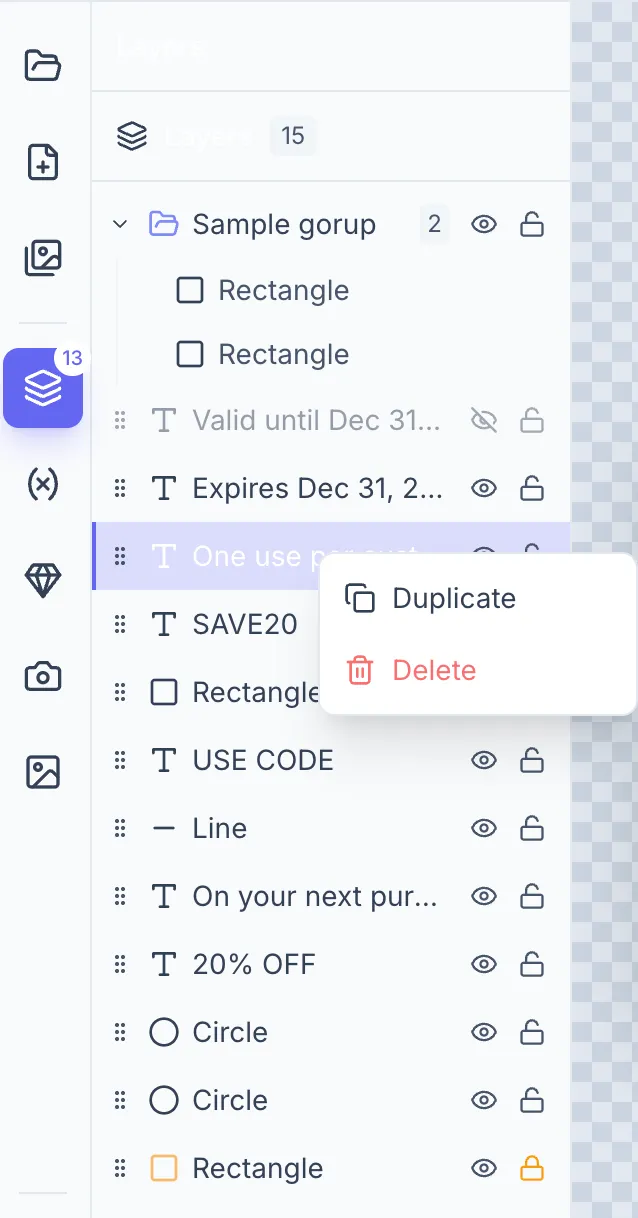
The Layers panel gives you a tree view of every element on the canvas, listed top-to-bottom (topmost element first).
Opening the Layers panel
Section titled “Opening the Layers panel”Click the Layers icon in the left sidebar rail (stacked layers icon, tooltip: “Layers”). A badge shows the number of top-level elements (a group counts as one; its members aren’t counted separately).
Layer rows
Section titled “Layer rows”Each layer row shows (left to right):
- Drag handle (grip icon) — drag to reorder.
- Expand/collapse chevron — visible on groups.
- Eye icon — toggle element visibility.
- Lock icon — toggle element lock.
- Element name — the element type or, for text elements, a preview of the text content.
Click a row to select that element on the canvas (and vice versa — selecting on canvas highlights the row).
Reordering layers
Section titled “Reordering layers”Drag a row by its grip handle to move it up or down. A blue line indicator shows where it will be dropped. Reordering in the panel is equivalent to using the layer-order buttons in the Properties panel.
Visibility (eye icon)
Section titled “Visibility (eye icon)”Click the eye icon to toggle an element’s visibility:
- Visible (eye open) — the element shows on canvas and in exports.
- Hidden (eye closed/slashed) — the element is invisible on canvas and in exports. Useful for elements you want to keep but temporarily hide.
Locking (lock icon)
Section titled “Locking (lock icon)”Click the lock icon to toggle:
- Unlocked — the element can be selected, moved, and edited normally.
- Locked — the element cannot be selected or moved by clicking on the canvas. Use this to protect background elements. A locked indicator badge also appears on the element in the canvas area.
Multi-select in the layers panel
Section titled “Multi-select in the layers panel”Cmd/Ctrl + click for individual multi-select. Shift + click for range select.
Context menu
Section titled “Context menu”Right-click any layer row for quick actions:
| Action | Shortcut | Condition |
|---|---|---|
| Group | ⌘G | Two or more items selected |
| Ungroup | ⇧⌘G | A group selected |
| Duplicate | ⌘D | Any element |
| Delete | ⌫ | Any element |
Footer hint
Section titled “Footer hint”The panel footer reads: “Click to select · Drag to reorder · Right-click for more options.”