

Barcodes
Adding a barcode
Section titled “Adding a barcode”Click the Barcode tool in the toolbar. A barcode element is placed at a default size (minimum 100 × 40 px).
Barcode properties
Section titled “Barcode properties”Select the barcode element, open the Design tab → Appearance section.
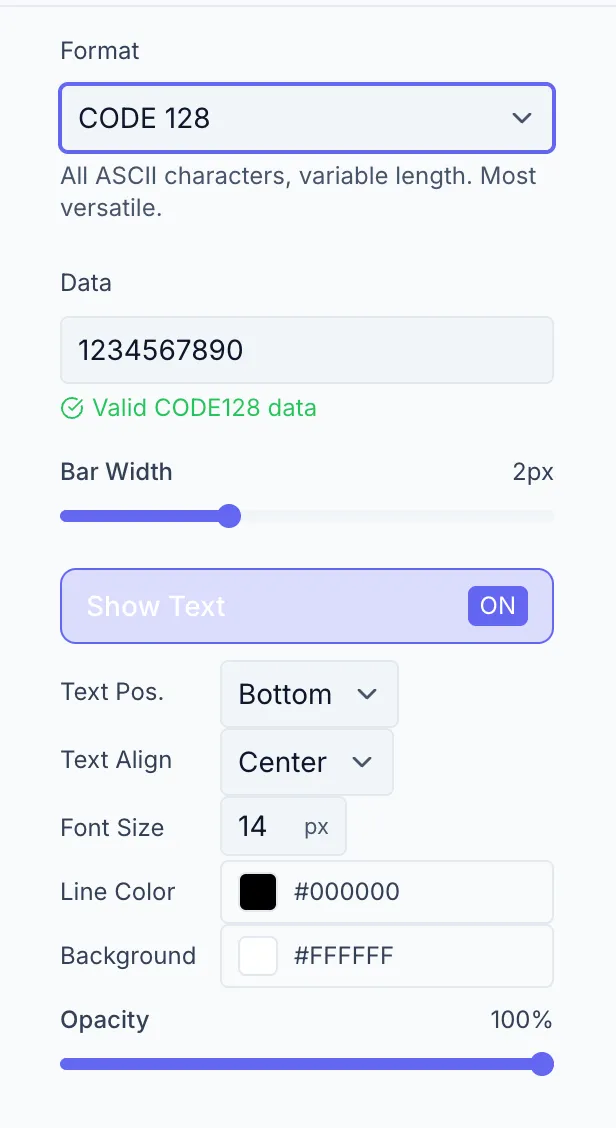
Format
Section titled “Format”Choose the barcode symbology from the dropdown. Each option shows the format name and a brief description.
Common formats:
| Format | Best for |
|---|---|
| Code 128 | General-purpose; alphanumeric |
| Code 39 | Industrial / automotive |
| EAN-13 | Retail products (13 digits) |
| UPC-A | North American retail (12 digits) |
| ITF-14 | Shipping / carton labels (14 digits) |
For 2D QR codes, use the separate QR Code element — it isn’t one of the barcode formats.
Enter the value to encode. The placeholder shows the format expected for the selected symbology (e.g. exactly 13 digits for EAN-13). A validation icon shows whether the current value is valid.
This field can be bound to a variable for dynamic barcodes. See Variable Settings.
Bar Width
Section titled “Bar Width”Controls the width of individual bars — 1–4 px. Narrower bars produce a more compact barcode; wider bars are easier to scan on low-resolution prints.
Show Text
Section titled “Show Text”Toggle whether the encoded value is printed below (or above) the barcode.
When ON, additional controls appear:
| Control | Options |
|---|---|
| Text Pos. | Top / Bottom |
| Text Align | Left / Center / Right |
| Font Size | 8–32 px |
Colors
Section titled “Colors”| Control | Description |
|---|---|
| Line Color | Bar color (default: black) |
| Background | Background behind the bars (default: white) |
Always keep sufficient contrast between line and background colors for scanner reliability.
Size constraints
Section titled “Size constraints”Minimum width: 100 px · Minimum height: 40 px. The Width and Height fields in the Transform section won’t let you set a value below these minimums.