

Switching Workspaces
If you belong to more than one workspace (your personal workspace plus one or more team workspaces), you can switch between them without signing out.
Using the workspace switcher
Section titled “Using the workspace switcher”The workspace switcher lives in the header, to the right of the Zandovi logo. Click it to open a dropdown listing all your workspaces.
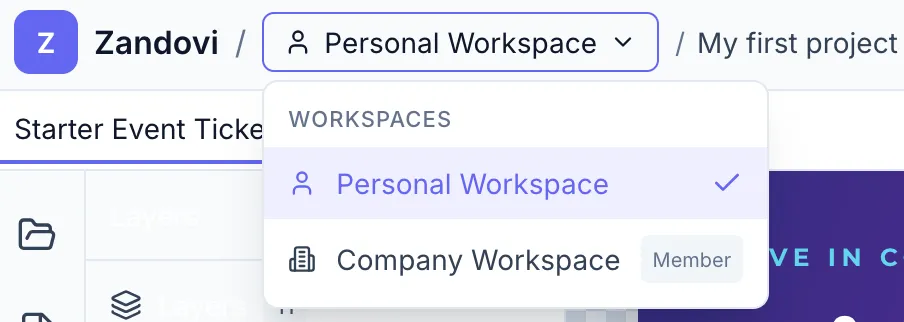
Each entry shows:
- An icon — person for personal, building for team.
- The workspace name.
- Your role in that workspace (Member or Admin — Owner is not labeled separately).
- A Settings gear icon (visible on team workspaces where you are Admin or Owner).
Click any workspace to switch to it. The page refreshes and all projects, templates, and API keys shown are from that workspace.
Accessing workspace settings
Section titled “Accessing workspace settings”Click the Settings gear icon next to a team workspace in the switcher, or go to Settings → Organization from within that workspace. See Organization Settings.