
Navigating the Canvas
| Method | How |
|---|---|
Mouse wheel + Cmd/Ctrl | Zoom in/out |
Cmd/Ctrl + + | Zoom in |
Cmd/Ctrl + - | Zoom out |
Cmd/Ctrl + 0 | Reset zoom to 100% |
| Footer − / % / + buttons | Zoom controls; click the percentage to reset to 100% |
| Footer Fit to Screen icon | Fit the entire canvas in the viewport |
Zoom range: 10% – 400%.
| Method | How |
|---|---|
Hand tool (H) | Switch to the Hand tool, then click and drag anywhere on the canvas to pan |
| Middle mouse button drag | Pan without switching tools |
Rulers
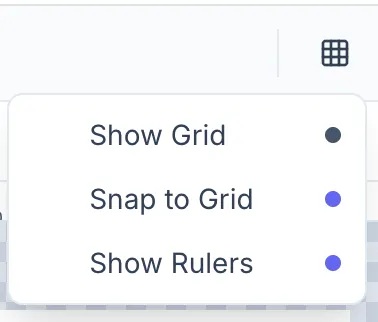
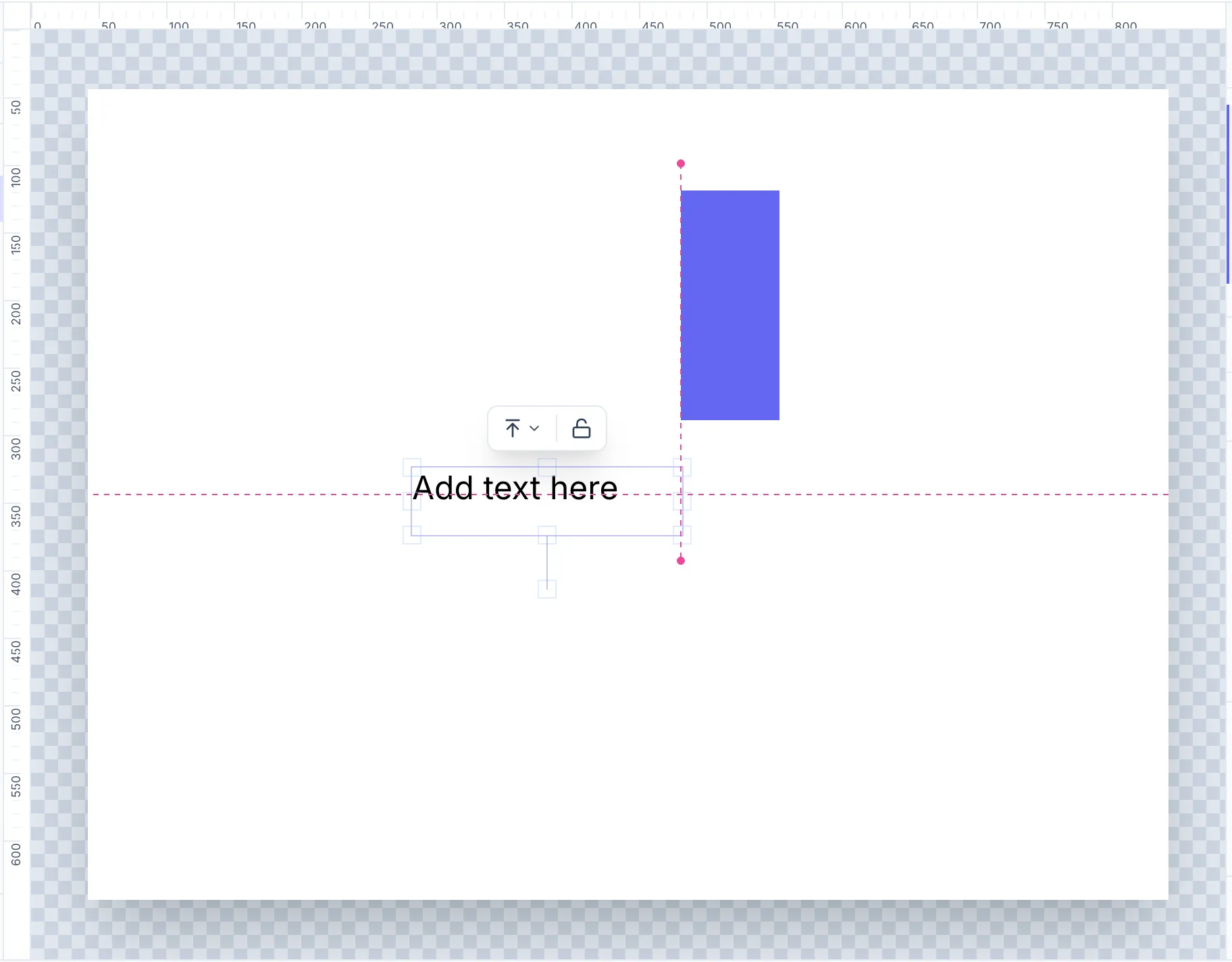
Section titled “Rulers”Toggle rulers from the header View options dropdown (grid icon) → Show Rulers. Rulers appear along the top and left edges.
Show Grid — displays a dotted/line grid over the canvas as a visual alignment aid. Toggleable from the header View options dropdown.
Snap to Grid — elements snap to grid lines when moved or resized. Toggled independently from View options or the footer grid icon.
Smart Guides
Section titled “Smart Guides”Smart Guides (footer magnet icon) — when enabled, intelligent alignment guides appear as blue lines while you drag elements, snapping to edges and centers of nearby elements and the canvas. The magnet icon in the footer turns accent-colored when active.
View options dropdown
Section titled “View options dropdown”Click the View options button (grid icon) in the top-right of the header to access all toggles in one place: