

Managing Your Subscription
Go to Settings → Billing (credit card icon). Admin and Owner only.
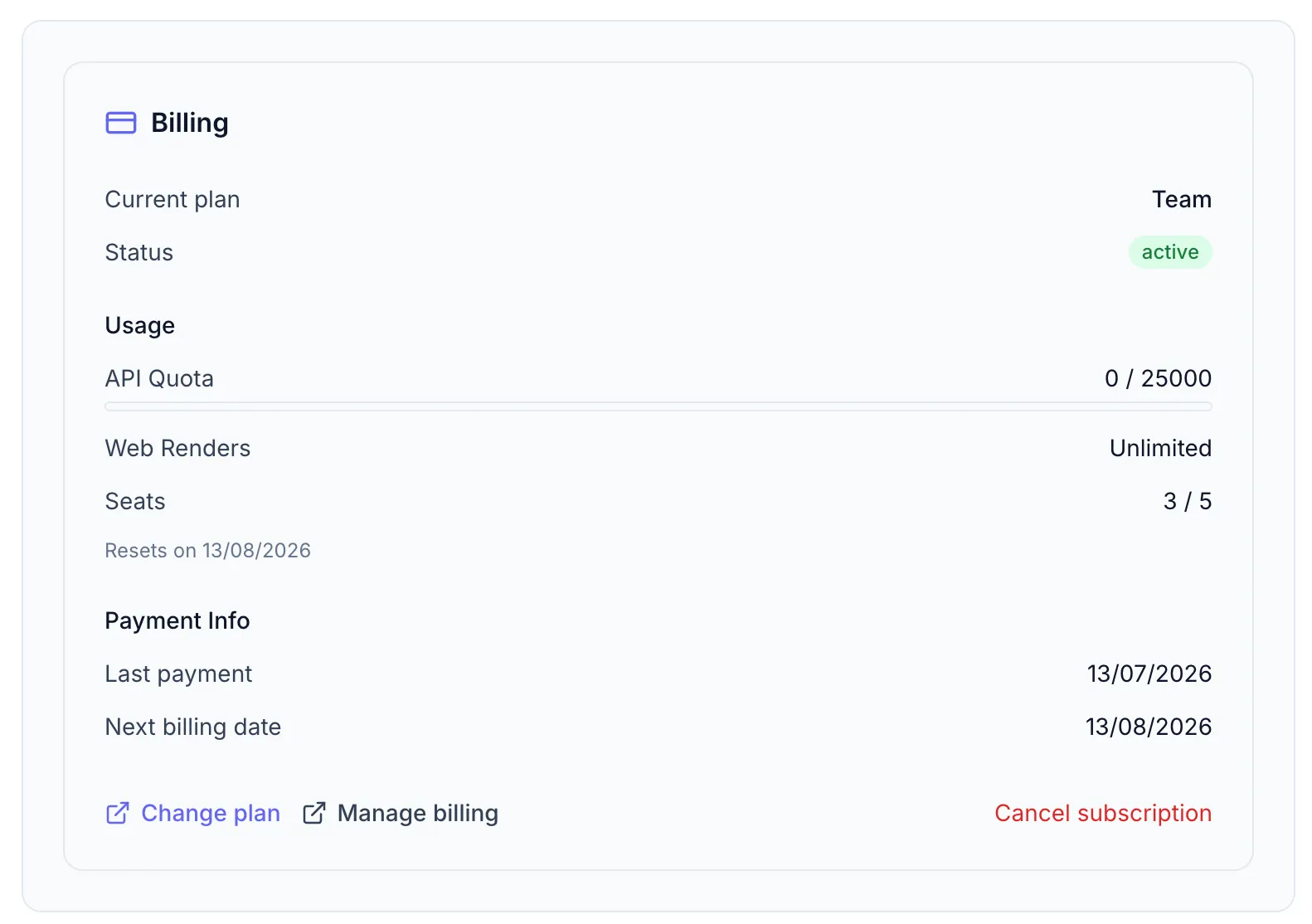
Subscription status
Section titled “Subscription status”The status badge reflects the current state of your subscription:
| Badge | Meaning |
|---|---|
| ACTIVE | Paid and in good standing |
| TRIALING | Free trial period |
| PAST_DUE | Payment failed; update your payment method |
| PAUSED | Subscription paused |
| CANCELED | Canceled; access ends at period end |
Scheduled changes
Section titled “Scheduled changes”If a plan change or cancellation is pending, an amber alert appears: “Your plan will change to [plan] on [date].”
Actions
Section titled “Actions”Change plan
Section titled “Change plan”Takes you to the plans page. See Changing Your Plan.
Manage billing
Section titled “Manage billing”Opens the Paddle billing portal in a new tab. From there you can update your payment method, download invoices, and manage payment details.
Cancel subscription
Section titled “Cancel subscription”- Click Cancel subscription.
- A confirmation dialog explains that cancellation takes effect at the end of the current billing period — you keep access until then.
- Confirm to schedule the cancellation.
After canceling, the status badge becomes CANCELED and an amber alert shows the effective date. Your account reverts to the Free plan at that date.